Clicking on the "Standard Forms" tab will display a list of standard forms.
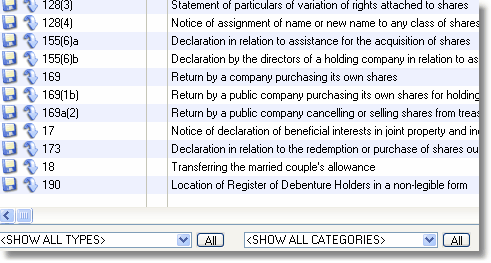
To find the required form, either:
| • | Scroll up and down the list using the mouse and/or arrow keys. |
| • | Type characters/words to search for in the "Search for" box and then click the search button. |
| • | Select a form "Type" from the drop-down list. |
| • | Select a form "Category" from the drop-down list. |
The list can be restricted to just those entries marked as a "favourite" by ticking the "Show only Favourites" box.
To open a form once found, either:
| • | Double-click the entry |
If working On-line - the form will be downloaded from the Internet to a local file and then immediately opened using the default software for the particular file type.
If working Off-line - if a local copy of the form exists (from a previous download), the local file will be immediately opened using the default software for the particular file type. If a local copy does not exist, the entry will be "greyed out" and unavailable.
| • | Highlight the entry and click "Download/Open" from the "Actions" task panel - the form will be downloaded from the Internet to a local file and then immediately opened using the default software for the particular file type. If working off-line, this option will not be available. |
| • | Highlight the entry and click "Open local copy" from the "Actions" task panel - the local file will be immediately opened using the default software for the particular file type. If a local copy does not exist, the entry will be "greyed out" and unavailable. If no local copy exists, this option will not be available. |
NB. Most forms are in "PDF" format and will therefore be opened in you default PDF reader - eg. Adobe Acrobat Reader.
See also: