Firstly login as a Supervisor. Then, go to whichever screen on which you wish to amend the user rights and press Ctrl-Alt-F8 (ie. press and hold the Ctrl and Alt keys and press the F8 key).
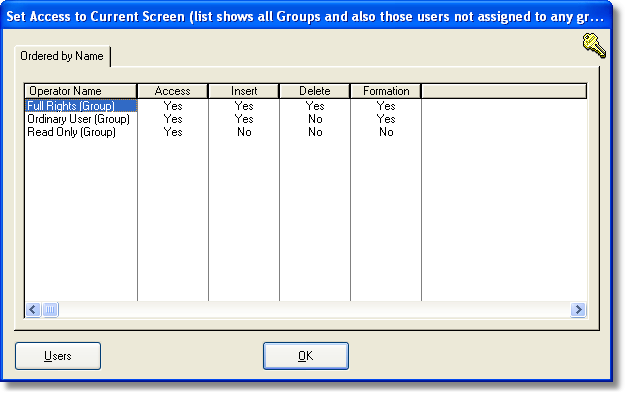
A screen similar to below will then open. It will list the names of the user groups (and also any users that are not allocated to any group) and, across the screen, it will show the categories that you can allocate or deny access. To change a Yes to a No or visa versa, simply double click the Yes or No. The actual options for each screen will vary slightly according the functions of that particular screen. |
|
In the example above, which relates to the Company List screen: Access Allow access to this screen
Insert Allow users to insert records
Delete Allow users to delete records
Formation Allow users to access Electronic Formations Facility |