The Security Module allows you to create users and assign access privileges/restrictions to each user. |
NB. The Security Module is an optional additional module that can be subscribed to . |
Overview Once you have subscribed to this module and registered your new password, you will have access to the Security menu option which appears on the main menu on the Company List screen. |
|
NB. Even if the Security Module has been subscribed for and enabled, the system will not request you to login until Users have been set up.
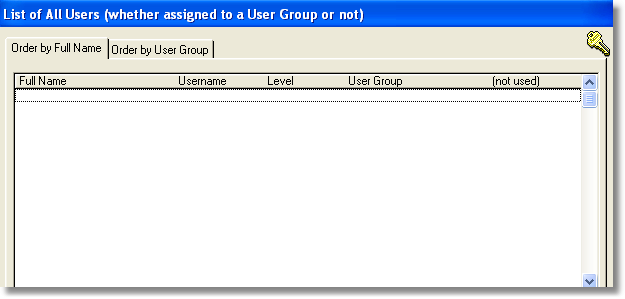
Creating First User The first task is to create the users. Click on the Security menu option and select the Add/Delete/Change Users drop down menu option. This will then give you a screen as follows: |
|
The list will initially be blank. Simply click on the Insert button to add a user. |
|
NB. The first user that you create will automatically be set up as a Supervisor, thus giving full access to all screens and functions. Only Supervisors are allowed to set up and amend user details in future.
You will need to supply the following information: First Name and Surname These are used purely to identify users in a list of users.
Username This is the name that is used by a user to login and is commonly set to the person's first name and first letter of surname or initial and surname. eg. John Smith might be "johns" or "jsmith". NB. To log in a user needs to enter their Username and their Password. Initially, a user's password is set to the same as their Username. The user (or the supervisor) can then change the password.
For the first user, who is automatically a Supervisor, no other fields need to be completed.
Now that you have created a Supervisor, when you next start the program you will be asked to login by entering your Username and Password. |
Creating Additional Users In order to create additional users, it is necessary to login as a Supervisor. Once logged in, a Supervisor may create or amend users by selecting the Security menu option and select the Add/Delete/Change Users drop down menu option. You can now create a new user by clicking on the Insert button or edit existing user details by double clicking the user in the list.
You will need to supply the following information for new users: First Name Surname These are used purely to identify users in a list of users.
Username This is the name that is used by a user to login and is commonly set to the person's first name and first letter of surname or initial and surname. eg. John Smith might be "johns" or "jsmith". NB. To log in a user needs to enter their Username and their Password. Initially, a user's password is set to the same as their Username. The user (or the supervisor) can then change the password.
Level The level must be set to Supervisor, Operator or No Access. If set to Supervisor or No Access, no further parameters need to be entered. Supervisors have access to all functions in the program, including user details. If set to No Access, a user can login but cannot access any functions or screens. If set to Operator, it is then necessary to specify the rights of that user in terms of which screens and functions they are permitted to access. In order to assist you in allocating user rights it is possible to create User Groups which are defined as to which screens/functions are permitted and then allocate each user to a User Group. It is strongly recommended that all users are allocated to a user group.
User Groups The program is shipped with three pre-defined user groups as follows (you can amend rights of each group and create new groups at will):
Full Rights By default, a member of this group has access to all screens and functions except creating and amending users/user rights which require Supervisor status.
Ordinary User By default, a member of this group has access to all screens and can add/edit details but is not permitted to delete information.
Read Only By default, a member of this group has access to most screens, can view and print information/forms, but is not permitted to insert, amend or delete data.
As stated above, the actual rights/restrictions of each user group is entirely definable by you and the above represents the standard configuration that ships with the program.
|