Background to Form 42
Details of "reportable events" must be provided in a form specified by the Inland Revenue. Form 42 is the one specified for that purpose. In reporting the details required you must provide those details as shown on the form. You may use your own form, spreadsheet or letter provided you give the same details and in the same format as required by this form. A copy of this form is available at www.inlandrevenue.gov.uk/shareschemes/ann-app-schemes.htm
PC Share Register Plus allows you to enter Form 42 data against each share transaction in order that the software can automatically produce completed schedules to Form 42 at the end of each tax year.
Information required to be recorded in the software
In order to fully complete the Form 42 schedules, certain information must be recorded as follows:
Share Types

Each share type status (in the Share Types tab for each company) must re recorded as either a "Restricted" or "Unrestricted" security as defined by the Inland Revenue for the purposes of Form 42. By default, all share types are marked as "Unrestricted".
Company

The Company's employer name and PAYE reference are required on Form 42 and must be entered. From the Company Info screen, click on the More Information button to open the More Information screen.
In the More Information screen, enter the PAYE details.
Persons
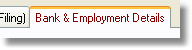
Each person that has an entry on a Form 42 must have recorded their NI Number. This can be entered in the update screen for that person and by clicking on the Bank & Employment Details tab.
Share Transactions
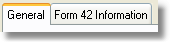
For each transaction there is General and a Form 42 Information tab. When a new transaction is inserted, default Form 42 information is automatically completed on your behalf. You should click on the Form 42 Information tab to review and amend the details as necessary.
Form 42 Reports
You can print schedules to Form 42. From the Company Info screen, click on Forms/Reports menu > Form 42 and select either printed or PDF reports. Before printing, you have the option of producing reports that indicate any entries where you have not "Accepted" auto-generated Form 42 data (see below).
Accepted / Unaccepted Form 42 data
When Form 42 data is auto-generated, either when you create a new share transaction or upgrade from an earlier version of the software, if you do not "Accept" the Form 42 data in the share transaction screen, the Form 42 data will be marked as Not Accepted.
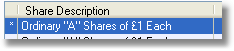
On the Share Transaction tab of the members update screen, any transaction where Form 42 data has not been "Accepted" will appear with a *.

A note will also appear on the same screen warning that there are such entries. To rectify the problem, open the share transaction and go to the form 42 tab and review/edit the data and then Save the transaction.